Add and manage users
Invite users to set up passkeys, update groups and display names, and manage passkeys and linked accounts.
Use zeabur-identityctl to invite users to set up passkeys, then use kubectl to manage groups and accounts. After signing in, users can add or remove passkeys, link accounts, change or remove a password, and end sessions on their account page.
Before you begin
Section titled “Before you begin”- Have
zeabur-identityctlready to create one-time setup links. - Have
kubectlor a GitOps tool ready to manage groups, admin accounts, sign-outs, and user removal. - Run commands in an environment with a cluster admin kubeconfig.
The following examples use the environment from Install and sign in on k3s, with Namespace zeabur-identity and Issuer https://identity.example.test. Set the environment variable to your own Issuer:
export ZEABUR_IDENTITY_ISSUER=https://identity.example.testzeabur-identityctl reads ZEABUR_IDENTITY_ISSUER, so you don't need to specify it again in later commands.
User-related objects
Section titled “User-related objects”Zeabur Identity stores users, passkeys, and sessions as Kubernetes objects in its own Namespace.
| Object | Short name | Purpose | Created by |
|---|---|---|---|
User | zbuser | A user, including their username, display name, groups, and account type | You |
Credential | zbcred | A passkey, a password, or a linked upstream account | Zeabur Identity, when the user uses a link |
Invitation | zbinvite | An unused one-time link | zeabur-identityctl invite; Zeabur Identity deletes it after the link is used or expires |
Grant | zbgrant | A signed-in session: applications use g-…, and the account page uses s-… | Zeabur Identity, at each sign-in |
Credential, Invitation, and Grant all carry the label identity.zeabur.com/user=<username>. Use -l identity.zeabur.com/user=alice to select these objects for alice.
By default, tokens for regular accounts expire after 10 minutes, and tokens for admin accounts expire after 5 minutes. For session settings, see Admin accounts and sessions.
Invite a new user
Section titled “Invite a new user”Create the user and setup link
Section titled “Create the user and setup link”zeabur-identityctl invite --username alice --display-name "Alice Chen" --group devThis command creates the user alice, adds her to the dev group, and outputs a one-time setup link. To add multiple groups, repeat --group.
The link expires after 7 days. You can't extend its lifetime. To shorten it, specify --valid-for 24h.
--group, --admin, and --display-name only configure new users. Inviting an existing user only adds a passkey or links an upstream account; it doesn't change their groups or display name.
If the user already has a passkey, a password, or a linked account, invite reports an error and stops. --reset deletes these sign-in credentials first. For account recovery, see Sign out, recover, and remove users.
Give the link to the user
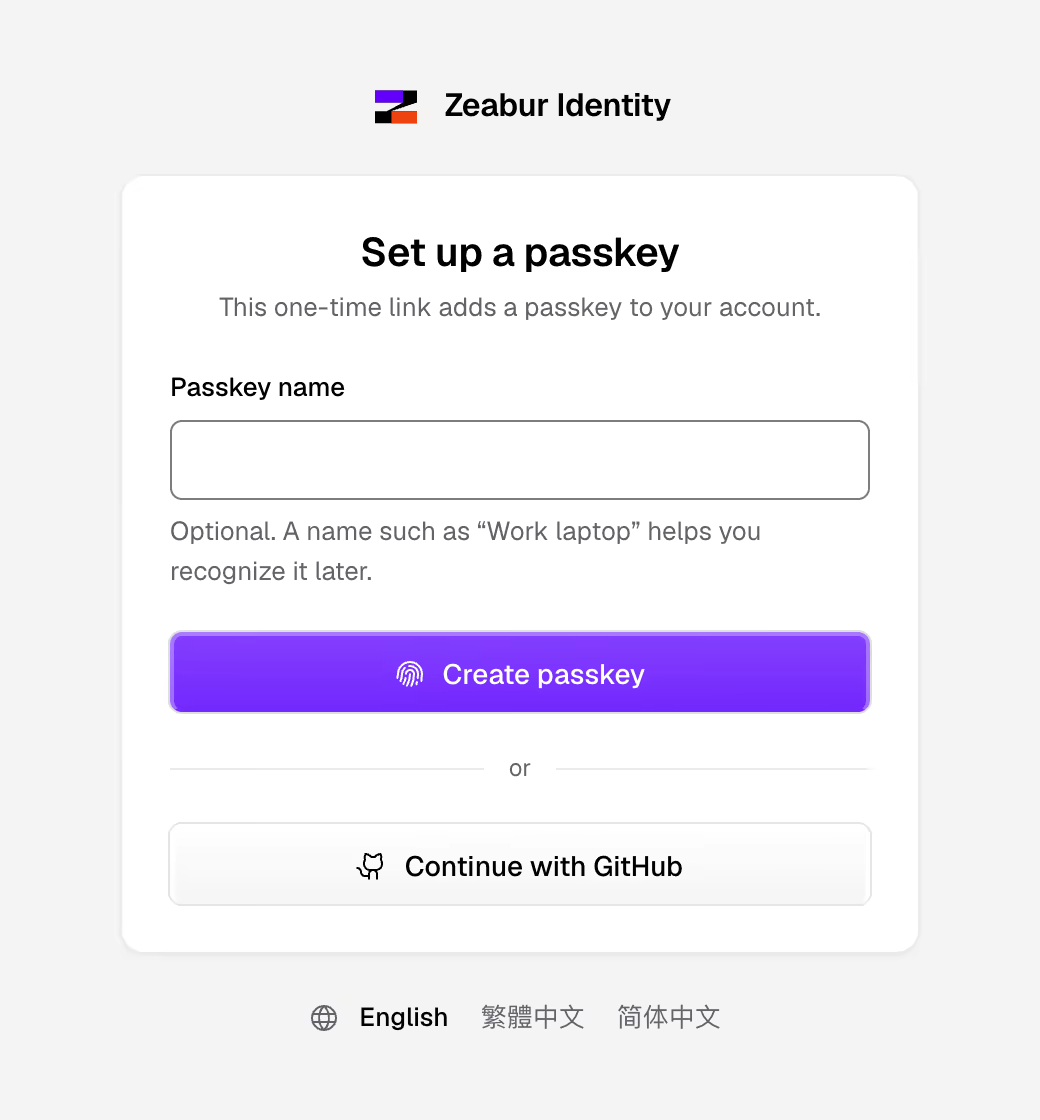
Section titled “Give the link to the user”Send the link to Alice through a channel you trust. She can open the link to create a passkey or set a password. If you've added an upstream sign-in, such as GitHub, she can link that account instead.
Zeabur Identity doesn't send email. The command outputs the link to stdout and other messages to stderr. You can send the link with a script:
link=$(zeabur-identityctl invite --username alice --group dev)mail -s "Set up your passkey" alice@example.com <<EOFOpen this link on the device that will keep your passkey:
$linkEOF
Zeabur Identity records events on the User when it issues an invitation and when someone uses it: InvitationIssued and InvitationRedeemed, respectively. Check the events to see when and where someone used the link:
kubectl -n zeabur-identity get events --field-selector involvedObject.name=aliceGrant permissions to the group
Section titled “Grant permissions to the group”Kubernetes identifies Alice as user zeabur:alice, with group zeabur:dev. Grant permissions to groups rather than individual users.
The following example grants the dev group permission to edit all resources in the dev Namespace:
kubectl create namespace dev # if it does not exist yetkubectl create rolebinding dev-edit --clusterrole=edit --group=zeabur:dev -n devWhen a link doesn't work
Section titled “When a link doesn't work”Check that the server has invitations enabled
Section titled “Check that the server has invitations enabled”Invitation links require the server to enable --invitations. Install and sign in on k3s enables this option. If your installation doesn't have it enabled, add the option and regenerate the deployment configuration:
ZEABUR_IDENTITY_IMAGE=$(kubectl -n zeabur-identity get deployment zeabur-identity -o jsonpath='{.spec.template.spec.containers[0].image}')zeabur-identityctl manifests --image "$ZEABUR_IDENTITY_IMAGE" \ --serve-arg=--invitations | kubectl apply --server-side -f -kubectl -n zeabur-identity rollout status deploy/zeabur-identityCheck that the user isn't disabled
Section titled “Check that the user isn't disabled”Invitation links don't work while a user is disabled. After you re-enable the user, the same link works again as long as it hasn't expired:
kubectl -n zeabur-identity patch zbuser alice --type=merge -p '{"spec":{"disabled":false}}'Change groups and display names
Section titled “Change groups and display names”Edit the user's User object. The following command changes alice's groups to dev and oncall:
kubectl -n zeabur-identity patch zbuser alice --type=merge -p '{"spec":{"groups":["dev","oncall"]}}'Group changes appear in the next token Zeabur Identity issues. Existing tokens retain the old groups until they expire; tokens that kubectl uses expire within 10 minutes.
Read back the groups first. Then ask the user to sign in again and use their own kubeconfig to check the identity that kube-apiserver sees:
kubectl -n zeabur-identity get zbuser alice -o jsonpath='{.spec.groups}'kubectl auth whoami # Groups lists zeabur:dev and zeabur:oncallIf the user has the label identity.zeabur.com/source=directory, directory sync manages the account. Change the display name and groups in the directory. See Sync users from a directory.
groups doesn't accept the admins group. Only the account type determines membership in this group. See Admin accounts and sessions.
You can't change a username because RBAC bindings and audit records reference it. To change a username, create a new user, then remove the old user.
Passwords
Section titled “Passwords”On the setup page, users can set a password instead of a passkey. They sign in with their username and that password. By default, an admin who sets a password also sets up an authenticator app. See Choose how admins sign in.
A password must have at least 15 characters. Zeabur Identity refuses common passwords and passwords that contain the username or the site name.
Each browser where the user has signed in before keeps its own count of wrong passwords. All other browsers share one count. After 10 wrong passwords in 1 hour on a count, Zeabur Identity refuses passwords on that count for 1 hour. Wrong guesses from other places can't lock the user out of their own browsers.
To change a password, users enter the current password and a new one on the account page. To remove it, they enter the current password. A user who has no passkey and no linked account can't remove the password. After a change or a removal, all other sessions of the user end. A change keeps the authenticator app and the recovery codes that the user hasn't used. A removal also removes the authenticator app. A wrong current password counts the same as a wrong password at sign-in.
To reset a forgotten password when it is the user's only way to sign in, delete its Credential and send a new setup link. If the user also has a passkey or a linked account, the setup link needs --reset, which deletes those too. See Sign out, recover, and remove users.
Let users manage their accounts
Section titled “Let users manage their accounts”Users can open https://<issuer>/account and sign in with a passkey, or with their username and password, to manage their passkeys and sessions:
- Add, rename, or remove passkeys.
- Change or remove a password.
- View and end sessions.
- Link or unlink upstream accounts for regular accounts, after you add an upstream sign-in.
Users must verify their identity with a passkey before adding a passkey, linking an account, or removing a passkey or linked account. To change or remove a password, users enter the current password instead. A user who has no passkey can't do the actions that need a passkey on the account page. Users can't remove their last passkey or unlink their last account available for sign-in on the account page.
When a user removes a passkey or unlinks an account on the account page, Zeabur Identity also ends all sessions that used that credential to sign in. Each change produces a log entry and an event on the User:
kubectl -n zeabur-identity get events --field-selector involvedObject.name=aliceAccount page sessions expire after 1 hour. Password managers find the account page through /.well-known/passkey-endpoints.
Add a passkey or device
Section titled “Add a passkey or device”Most passkeys sync through platform accounts, such as iCloud Keychain or Google Password Manager, so switching to a new phone usually doesn't require extra setup. To use a separate security key, users can add it on the account page.
Regular accounts can also link upstream accounts, such as GitHub, on the account page. The same external account can't link to different users at the same time. To link it to another user, unlink it on the original user's account page first. The account page links one account for each provider. To link a different account from the same provider, unlink the current one first. By default, admin accounts can't link external accounts.
Don't use invite to add passkeys or link accounts for users who can already sign in. If the link reaches the wrong person, that person can sign in as the user. If the user can no longer sign in, follow the recovery process in Sign out, recover, and remove users.
Remove passkeys or linked accounts as an admin
Section titled “Remove passkeys or linked accounts as an admin”Admins can also list and delete Credential objects directly:
kubectl -n zeabur-identity get zbcred -l identity.zeabur.com/user=alicekubectl -n zeabur-identity delete zbcred <name>After deletion, the credential can no longer sign in. Deleting a Credential directly doesn't end sessions it previously created; those sessions remain usable. Follow Sign out, recover, and remove users to sign the user out. Removing a credential on the account page also ends the associated sessions.