Add an upstream sign-in
Let users sign in with an account from GitHub, Google or your own OpenID provider, such as Keycloak, after you link it to their user.
Besides passkeys, Zeabur Identity can let users sign in with an account they already have elsewhere: GitHub, Google, or an OpenID provider your organization runs, such as Keycloak, Okta or Microsoft Entra ID. Each of these is an upstream sign-in. After you add one, the sign-in page shows Continue with and its name under the passkey button.
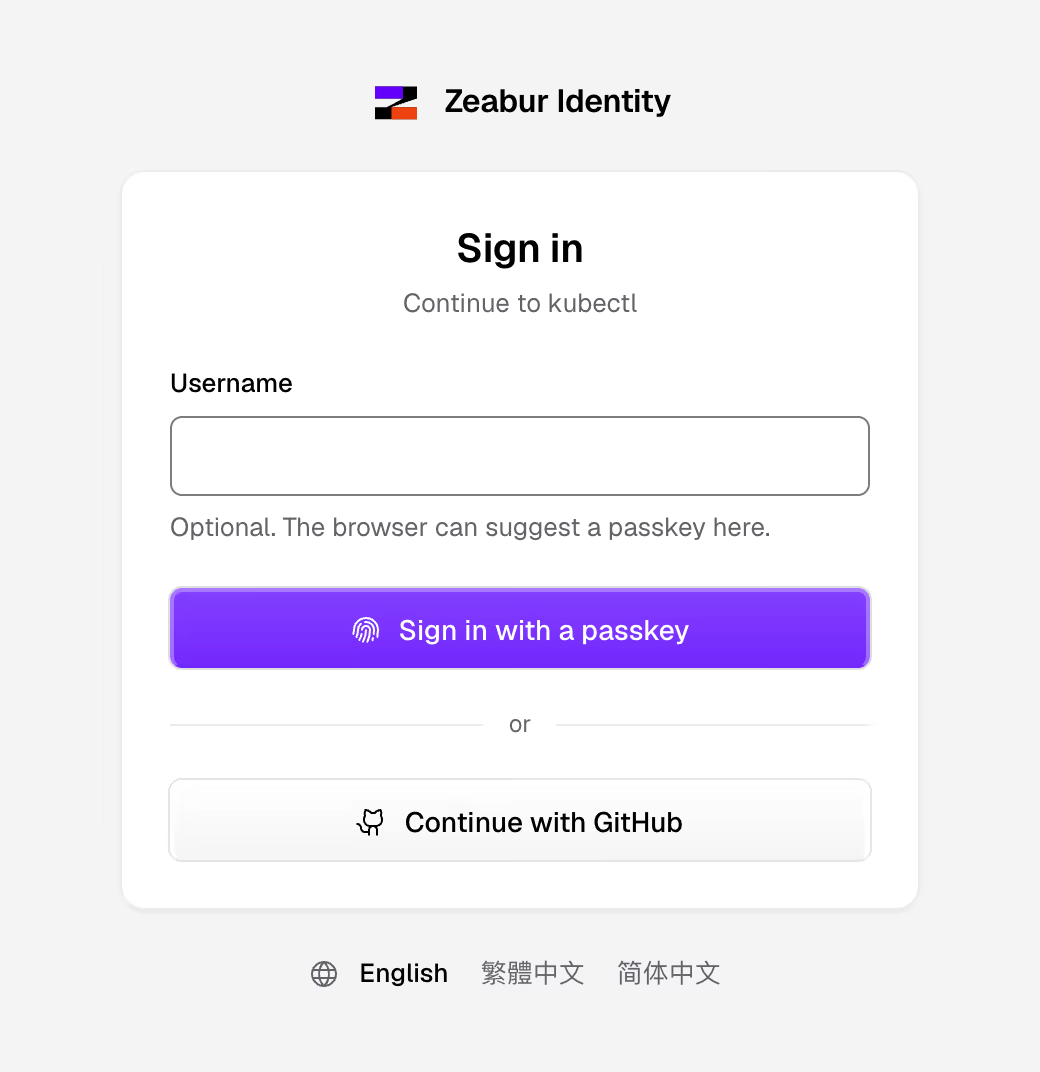
You decide who can sign in. An account from the provider signs in only after it is linked to a Zeabur Identity user. Zeabur Identity doesn't create users on first sign-in and doesn't match accounts by email address, name or organization. Groups still come from User. Each linked account is recorded by the provider's issuer and its stable account ID, so a login name or email address that changes hands doesn't move the link.
By default, admin accounts can't sign in with or link an upstream account, unless you run an OpenID provider that always asks for a second factor and mark it so. See also Choose how admins sign in.
Before you begin
Section titled “Before you begin”- Complete Install and sign in on k3s.
- Know your Issuer, the address users open Zeabur Identity at. The examples use
https://identity.example.com. - Let the Zeabur Identity Pod make outbound HTTPS connections to the provider:
github.comandapi.github.comfor GitHub;accounts.google.com,oauth2.googleapis.comandwww.googleapis.comfor Google; your provider's host otherwise. - For Google, use a real public domain. Google only accepts redirect URIs on public domains (see Google's URI validation rules), so the
identity.example.testname from the quickstart won't work.
Add a provider
Section titled “Add a provider”Each provider gets a name of your choice, such as github, google or keycloak: lowercase letters, digits and -, up to 63 characters. The name appears in the callback address, so pick it before you register Zeabur Identity at the provider and keep it afterward.
Register Zeabur Identity at the provider
Section titled “Register Zeabur Identity at the provider”Create an OAuth or OpenID client at the provider with this callback address, also called redirect URI. Replace the domain with your Issuer and NAME with the provider's name:
https://identity.example.com/upstream/NAME/callbackThen note the client ID and the client secret.
Create a confidential client for the authorization code flow, for example in Keycloak under Clients → Create client with Client authentication on and only Standard flow checked. Add the callback address as the only valid redirect URI. Zeabur Identity requests the openid scope, sends a PKCE challenge (S256) and a nonce, and checks the signed ID token.
Also note the provider's issuer, the address its /.well-known/openid-configuration is under. For Keycloak, that is https://<keycloak host>/realms/<realm>.
In GitHub, open Settings → Developer settings → OAuth Apps → New OAuth App, or the same page in your organization's settings so the app doesn't depend on one person's account.
| Field | Value |
|---|---|
| Application name | For example, Zeabur Identity. Users see this name on GitHub's authorization page |
| Homepage URL | https://identity.example.com |
| Authorization callback URL | https://identity.example.com/upstream/github/callback |
| Enable Device Flow | Off |
Then generate a client secret.
In Google Cloud Console, following Google's OpenID Connect guide:
- Select or create a project. Under Google Auth platform → Branding, set the application name and contact information.
- Under Audience, select Internal to allow only your Google Workspace organization, or External to allow any Google account. Either way, an account must be linked before it can sign in. Applications that only request
openidare exempt from the testing-mode limits in Google's publishing rules. - Under Data Access, declare only the
openidscope. - Under Clients → Create Client, select Web application and add
https://identity.example.com/upstream/google/callbackunder Authorized redirect URIs. Leave Authorized JavaScript origins empty. - Copy the client secret itself, not the JSON file Google offers.
Store the client secret
Section titled “Store the client secret”Zeabur Identity reads every provider's client secret from the Secret zeabur-identity-upstream, one key for each provider. Use the provider's name as the key. These commands keep the secret out of your shell history and process list:
read -rs CLIENT_SECRET # paste the client secret, then Enterprintf %s "$CLIENT_SECRET" | kubectl -n zeabur-identity create secret generic zeabur-identity-upstream \ --from-file=NAME=/dev/stdinunset CLIENT_SECRETIf the Secret already holds another provider's key, add yours without removing the others, with your secret management tool or with kubectl -n zeabur-identity edit secret zeabur-identity-upstream (values are base64).
Zeabur Identity reads the secret at each sign-in, so a new value applies to the next sign-in without a restart.
Create the UpstreamProvider
Section titled “Create the UpstreamProvider”kubectl apply -f - <<EOFapiVersion: identity.zeabur.com/v1alpha1kind: UpstreamProvidermetadata: name: keycloak namespace: zeabur-identityspec: clientId: zeabur-identity openid: issuer: https://sso.example.com/realms/staff displayName: Company SSOEOFdisplayName is what the button says, up to 64 characters. Without it, the button shows the object name. issuer must use https. Add scopes under openid only if the provider needs more than openid to sign someone in.
kubectl apply -f - <<EOFapiVersion: identity.zeabur.com/v1alpha1kind: UpstreamProvidermetadata: name: github namespace: zeabur-identityspec: clientId: Ov23li... github: {}EOFgithub has no fields. The button says Continue with GitHub.
kubectl apply -f - <<EOFapiVersion: identity.zeabur.com/v1alpha1kind: UpstreamProvidermetadata: name: google namespace: zeabur-identityspec: clientId: 1234567890-example.apps.googleusercontent.com openid: issuer: https://accounts.google.com displayName: GoogleEOFThe sign-in page shows the new button at the next page load. You don't need to restart Zeabur Identity. For an OpenID provider, Zeabur Identity reads the issuer's /.well-known/openid-configuration when a user chooses the button, and uses the addresses listed there.
Link accounts to users
Section titled “Link accounts to users”Choose by the user's situation:
- A regular account that can already sign in: the user opens the account page, selects Link next to the provider under Sign-in methods, and confirms with a passkey.
- A new user: send an invitation as described in Manage users. Invitations need the
--invitationsoption from Install and sign in on k3s. After opening the link, the user selects Continue with and the provider's name instead of creating a passkey. - A user who has an account but can't sign in: send another invitation for the same username. If the account already has a passkey, a password or a linked account, the invitation needs
--reset. See Sign out, recover, and remove users.
Providers with a private CA
Section titled “Providers with a private CA”If the provider's certificate comes from your own CA, for example a Keycloak inside the company network, Zeabur Identity can't connect until it trusts that CA. Put the CA certificate in a ConfigMap and point the Pod's certificate settings at it, keeping the image's own bundle:
kubectl -n zeabur-identity create configmap upstream-ca --from-file=ca.crt=company-ca.pemkubectl -n zeabur-identity patch deployment zeabur-identity --patch 'spec: template: spec: volumes: - {name: upstream-ca, configMap: {name: upstream-ca}} containers: - name: zeabur-identity env: - {name: SSL_CERT_FILE, value: /etc/ssl/certs/ca-certificates.crt} - {name: SSL_CERT_DIR, value: /etc/zeabur-identity-upstream-ca} volumeMounts: - {name: upstream-ca, mountPath: /etc/zeabur-identity-upstream-ca, readOnly: true}'Set both variables. With SSL_CERT_DIR alone, the Pod trusts only your CA and can no longer reach GitHub or Google. zeabur-identityctl manifests doesn't print this change, so apply it again after you regenerate the Deployment.
Verify the result
Section titled “Verify the result”Clear the cached kubectl session so kubelogin opens the browser again, then choose the new button and sign in with a linked regular account:
rm -rf ~/.kube/cache/oidc-loginkubectl auth whoami # the user is zeabur:<username>In the output, identity.zeabur.com/amr lists swk and mfa for a passkey sign-in. For an upstream sign-in it stays empty, or lists only mfa if the provider is marked mfa: Enforced. Admin accounts, such as admin from the quickstart, accept upstream sign-ins only through a provider marked mfa: Enforced.
Let admins sign in through a provider
Section titled “Let admins sign in through a provider”By default, admin accounts need two factors, and Zeabur Identity can't see whether GitHub, Google or another provider asked for a second factor. So admins can't sign in through an upstream provider. If you run an OpenID provider, such as Microsoft Entra ID or Keycloak, and set it up to ask every sign-in to this client for a second factor, mark it with mfa: Enforced:
kubectl -n zeabur-identity patch upstreamprovider keycloak --type merge -p '{"spec":{"openid":{"mfa":"Enforced"}}}'Then, with admin-sign-in set to two-factor, the default, admin accounts can sign in with and link accounts from this provider. They link one the same way as regular accounts: from the account page, or with a setup link. Under passkey and device-bound-passkey, admins still use passkeys only, and under any they can use every provider.
Zeabur Identity doesn't check this setting. It doesn't read the provider's amr or acr claims, so an admin account through this provider is only as safe as the provider's second-factor rule. Set Enforced only if every account that can be linked to an admin must pass a second factor at that provider, with no exemptions such as trusted networks or remembered devices that you don't accept. github providers have no mfa field: you don't run github.com, so you can't make it ask for a second factor.
A sign-in through a marked provider carries amr: ["mfa"] in its tokens. If you set mfa back to Unknown, new admin sign-ins through the provider fail at once, but sessions already signed in last until they end. To end them now, sign the admins out as described in Sign out, recover, and remove users.
Change or remove a provider
Section titled “Change or remove a provider”-
Change it. Edit the
UpstreamProvider. The next sign-in uses the new settings. Keep the name: it is part of the callback address registered at the provider. -
Rotate the client secret. Update the provider's key in
zeabur-identity-upstream. The next sign-in uses it. -
Remove it. Delete the object, then delete the client at the provider:
kubectl -n zeabur-identity delete upstreamprovider NAMELinked accounts and existing sessions stay. Users still see and can remove the linked accounts on their account page. If you add a provider with the same issuer again, under any name, those accounts sign in again.
To stop one person from using a linked account, remove that credential as described in Manage users. To end sessions they already have, sign them out, and to revoke everything, disable or remove the user. See Sign out, recover, and remove users.
Link an account without the user
Section titled “Link an account without the user”If you know the account's ID at the provider, you can create its Credential yourself. Its name is derived from the issuer and the ID, and Zeabur Identity looks accounts up by that name. For GitHub, the issuer is https://github.com and the ID is the numeric account ID. For an OpenID provider, they are the issuer from the UpstreamProvider and the account's sub.
USER_NAME=alice # an existing UserISSUER=https://github.comSUBJECT=$(curl -fsS https://api.github.com/users/octocat | jq -r .id)USER_UID=$(kubectl -n zeabur-identity get users.identity.zeabur.com "$USER_NAME" -o jsonpath='{.metadata.uid}')NAME=c-$(printf 'zeabur-identity/external/v1/%s\0%s' "$ISSUER" "$SUBJECT" | sha256sum | cut -d' ' -f1)kubectl apply -f - <<EOFapiVersion: identity.zeabur.com/v1alpha1kind: Credentialmetadata: name: $NAME namespace: zeabur-identity labels: {identity.zeabur.com/user: "$USER_NAME"} ownerReferences: - {apiVersion: identity.zeabur.com/v1alpha1, kind: User, name: $USER_NAME, uid: $USER_UID}spec: user: $USER_NAME external: {issuer: "$ISSUER", subject: "$SUBJECT"}EOFTroubleshooting
Section titled “Troubleshooting”| Screen or result | What to do next |
|---|---|
| No button for the provider on the sign-in page | Run kubectl -n zeabur-identity get upstreamproviders. If the object exists, run kubectl -n zeabur-identity logs deploy/zeabur-identity and look for upstream_provider_invalid, which names the field it can't use. |
| The provider says the redirect URI doesn't match | The address registered at the provider must be exactly <issuer>/upstream/<name>/callback, with the UpstreamProvider's name. Google also rejects names such as identity.example.test. |
| Unable to complete the request right after choosing the button | If the provider was removed or renamed after the page loaded, reload the page. If the logs show provider_unavailable, Zeabur Identity can't read the issuer's /.well-known/openid-configuration: check that the Pod can reach the issuer over HTTPS and, for a private CA, the steps above. |
| Unable to verify the provider's answer after the provider sends the user back | Look for provider_unavailable in the logs. The Secret zeabur-identity-upstream doesn't exist or lacks a key with the provider's name, or the Pod can't reach the provider's token or key addresses. |
| This account isn't linked | Link the account first. Zeabur Identity doesn't match accounts by email address or name. A Credential you created with a wrong name or ID gives the same message. |
| Sign in to this account another way | The account is linked to an admin account, and the admin-sign-in setting doesn't let admins use this provider. See Let admins sign in through a provider. |
org_internal or another Google access error | Check the application's Audience and the account's organization policies. |